Go paper-free
Amend paper-free preferences for your statements and communications.

A simple, secure and fast way to bank with us.
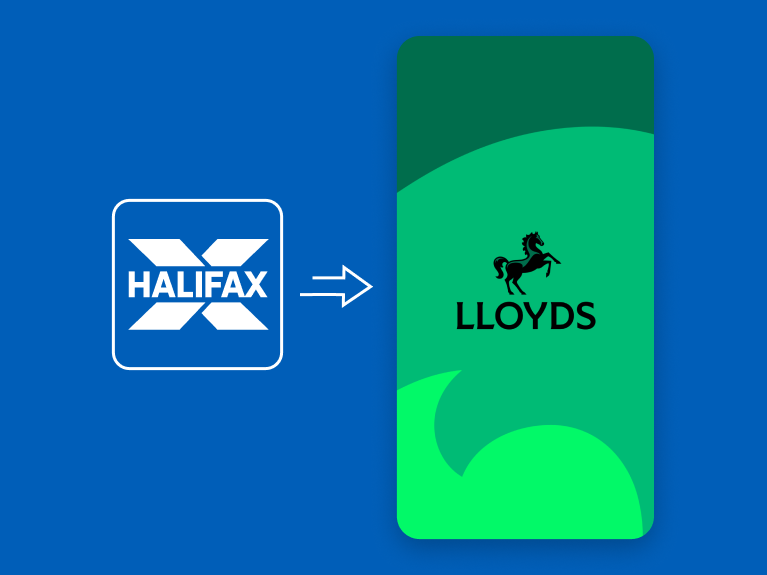
Over the next few months, we'll be in touch to move you to the Lloyds app and online banking as we'll be closing these for Halifax. They work in a similar way, so should feel familiar and just as easy to use.
You will no longer be able to apply for some Halifax products once you move across to the Lloyds app, but there's plenty for you to discover with Lloyds.
If you need support with your Halifax app today, explore our app guides to discover how it can help you take control of your money and keep it safe.
|
What do you want to do? |
Mobile Banking app |
Online Banking |
|---|---|---|
|
What do you want to do? |
Mobile Banking app
|
Online Banking
|
|
What do you want to do? |
Mobile Banking app
|
Online Banking
|
|
What do you want to do? |
Mobile Banking app
|
Online Banking
|
|
What do you want to do? |
Mobile Banking app
|
Online Banking
|
|
What do you want to do? |
Mobile Banking app
|
Online Banking
|
|
What do you want to do? |
Mobile Banking app
|
Online Banking
|
|
What do you want to do? |
Mobile Banking app
|
Online Banking
|
|
What do you want to do? |
Mobile Banking app |
Online Banking |
|---|---|---|
|
What do you want to do? |
Mobile Banking app
|
Online Banking
|
|
What do you want to do? |
Mobile Banking app
|
Online Banking
|
|
What do you want to do? |
Mobile Banking app
|
Online Banking
|
|
What do you want to do? |
Mobile Banking app
|
Online Banking
|
|
What do you want to do? |
Mobile Banking app
|
Online Banking
|
|
What do you want to do? |
Mobile Banking app
|
Online Banking
|
|
What do you want to do? |
Mobile Banking app
|
Online Banking
|
|
What do you want to do? |
Mobile Banking app
|
Online Banking
|
|
What do you want to do? |
Mobile Banking app |
Online Banking |
|---|---|---|
|
What do you want to do? |
Mobile Banking app
|
Online Banking
|
|
What do you want to do? |
Mobile Banking app
|
Online Banking
|
|
What do you want to do? |
Mobile Banking app
|
Online Banking
|
|
What do you want to do? |
Mobile Banking app
|
Online Banking
|
|
What do you want to do? |
Mobile Banking app
|
Online Banking
|
|
What do you want to do? |
Mobile Banking app
|
Online Banking
|
|
What do you want to do? |
Mobile Banking app
|
Online Banking
|
|
Look what you can do |
Mobile banking app |
Online banking |
|---|---|---|
|
Look what you can do |
Mobile banking app
|
Online banking
|
|
Look what you can do |
Mobile banking app
|
Online banking
|
|
Look what you can do |
Mobile banking app
|
Online banking
|
|
Look what you can do |
Mobile banking app
|
Online banking
|
|
Look what you can do |
Mobile banking app
|
Online banking
|
|
Look what you can do |
Mobile banking app
|
Online banking
|
|
Look what you can do |
Mobile banking app
|
Online banking
|
|
Look what you can do |
Mobile banking app
|
Online banking
|