Hi I'm Jaz, I'm a Digital Assistant.
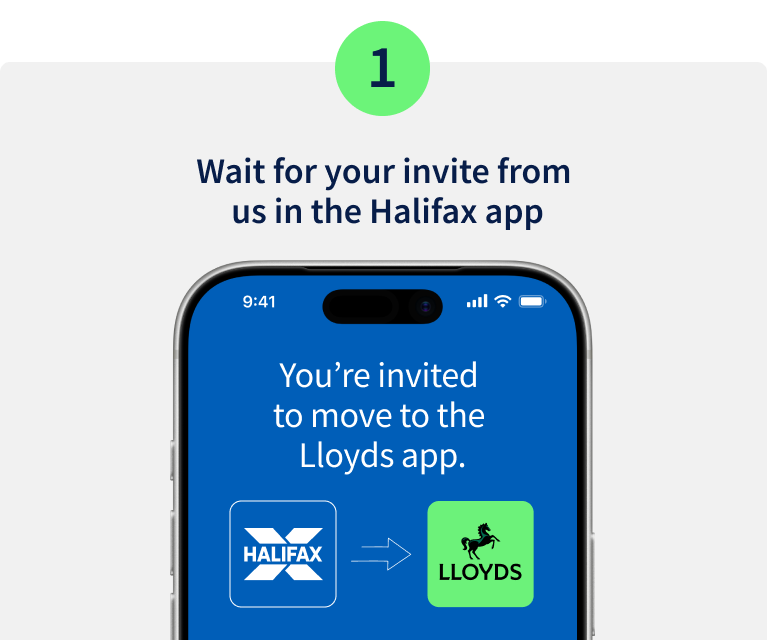
This short video will guide you through moving from the Halifax app to the Lloyds app.
The process is quick, secure, and should only take around one minute to complete.
Let's take a look at the steps you'll need to follow.
You can select "Start using the Lloyds app" or "Get started" to begin your move
The good news is that very little will change.
Your account details, cards, PINs, standing orders, direct debits and payments will continue to work as they do today.
You won't need to create any new passwords or memorable details, making the move as simple as possible.
Select "Start using the Lloyds app" to proceed.
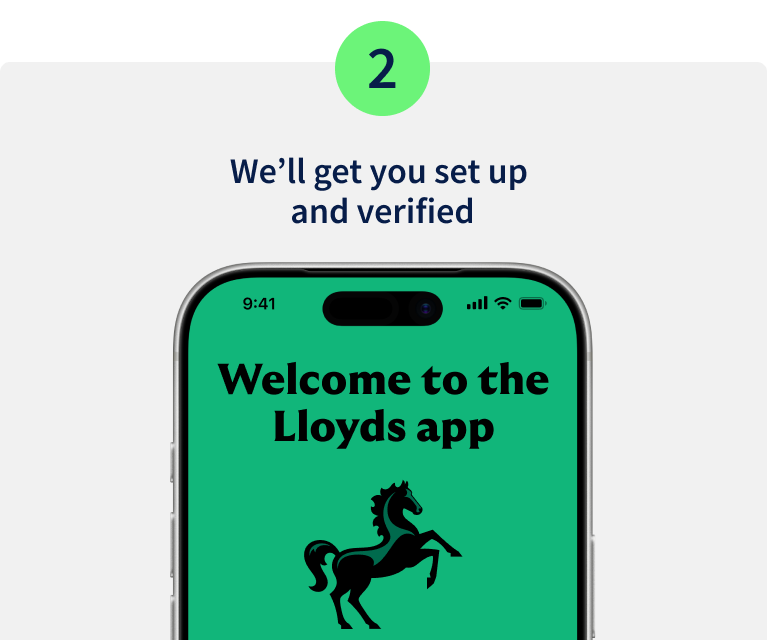
We'll now take you to the Lloyds app.
If you don't already have it installed, you'll be directed to your device's app store where you can select "Get" or "Install" to download it.
If you already have the Lloyds app on your device, you'll be prompted to "Open" it and continue your move.
In some cases, you may need to update the app to the latest version before moving to the next step.
Before you continue, we'll need to verify it's you.
We'll use your Halifax app to confirm your identity.
You can now select "Verify with Halifax app" to continue.
Once logged in, confirm that you're setting up the Lloyds app on this device by selecting "Yes".
We'll then return you to the Lloyds app so you can continue with your move.
From here, you'll be guided through 3 simple steps, checking your login details, accepting online banking terms and conditions and setting up biometric login, such as Face ID or fingerprint recognition.
Now select "Continue" to proceed.
You'll now be asked to confirm your Username.
Most customers, will be able to continue using their existing Halifax Username.
However, if it's already being used within Lloyds Banking Group, we'll suggest alternatives or help you create a new one.
If you already have a Lloyds Username, perhaps from a Lloyds account you've held previously, Lloyds Business Banking, or acting as a Power of Attorney, we'll use that Username instead.
You’ll then be prompted to review and accept the Lloyds online banking terms and conditions.
Links will be available on screen for you to review the Lloyds online banking agreement and data privacy notice.
To continue, you must tick the checkbox to confirm acceptance.
Importantly, you are made aware that this is the point in the process where, once you select "Confirm", your access to the Halifax app and online banking will stop.
You’ll now be asked if you would like to set up biometrics to log in more quickly and securely, either Face ID or fingerprint.
You also have the option to skip this step and continue with the journey, choosing to set this up later if you prefer.
At the end of the journey, you will be presented with a "Welcome to Lloyds" message, confirming that the transition is complete and you are now set up to use the Lloyds app.
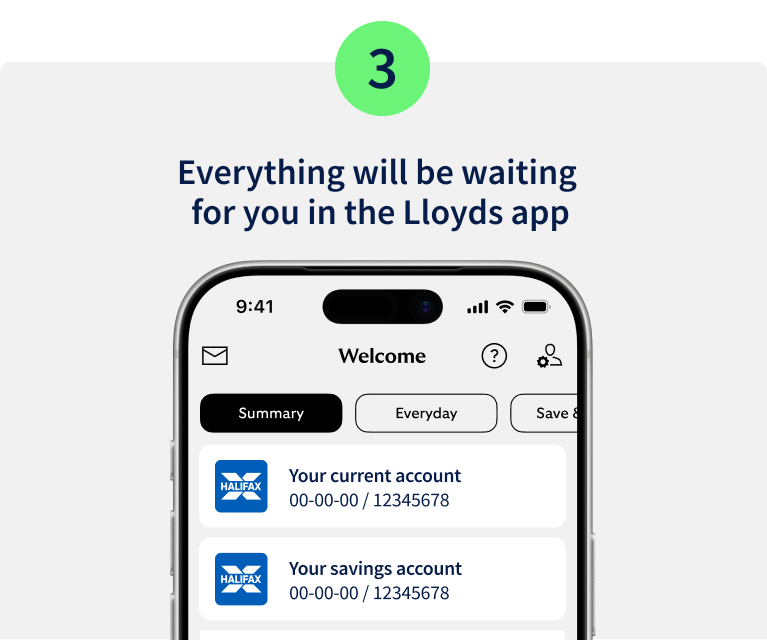
From here you can select ‘See your accounts’ to manage your banking in the Lloyds app.
Once you have completed the move, access to the Halifax app is now blocked.
If you attempt to log in, you will see a message that tells you the Halifax app is no longer available and that you now need to use the Lloyds app instead.